Capture Mobile Elements
Capture a mobile element before using it in click or input commands. In the sidebar, open Element Library and select Capture New Elements.
Captured elements appear below. Select an element to view it; hover over it to reveal actions for editing its attributes or deleting it.
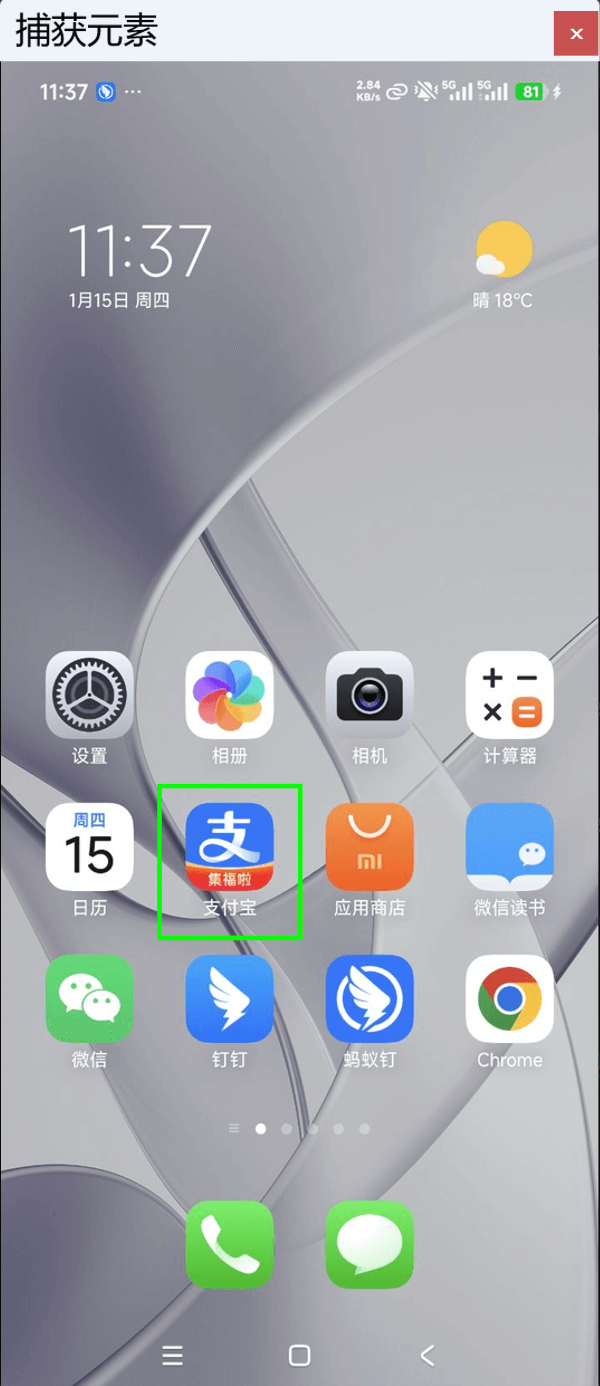
After capture mode starts, move the pointer over the mirrored mobile screen. The detected element is outlined in green; press Ctrl+left-click to capture it.
Capture Similar Mobile Elements
Use similar-element capture for repeated items such as contacts in a list. Drag Get Similar Mobile Elements into the workflow, then select Select Elements > Capture New Elements. Ctrl+left-click the first item, then Ctrl+left-click a second similar item. The element-property editor opens after the second capture.
Example: Get WeChat contact name
Edit Element Attributes
Select every node required to locate the element reliably.
- A captured WeChat input field may include the current contact's name. Clear that attribute so the locator also works in other conversations.
- If WeChat elements cannot be captured, enable TalkBack in Android settings (usually under Accessibility > Vision).
Select a node name to edit it, for example to change TextView to EditText. Use Add to add a node.
After editing, select Verify Element. A normal locator should match exactly one element. If it matches multiple elements, refine the selected nodes and attributes. Similar-element locators are expected to match multiple elements.